Set up
Set up a WordPress site in three steps: pick a trade, add your logo and colours, done
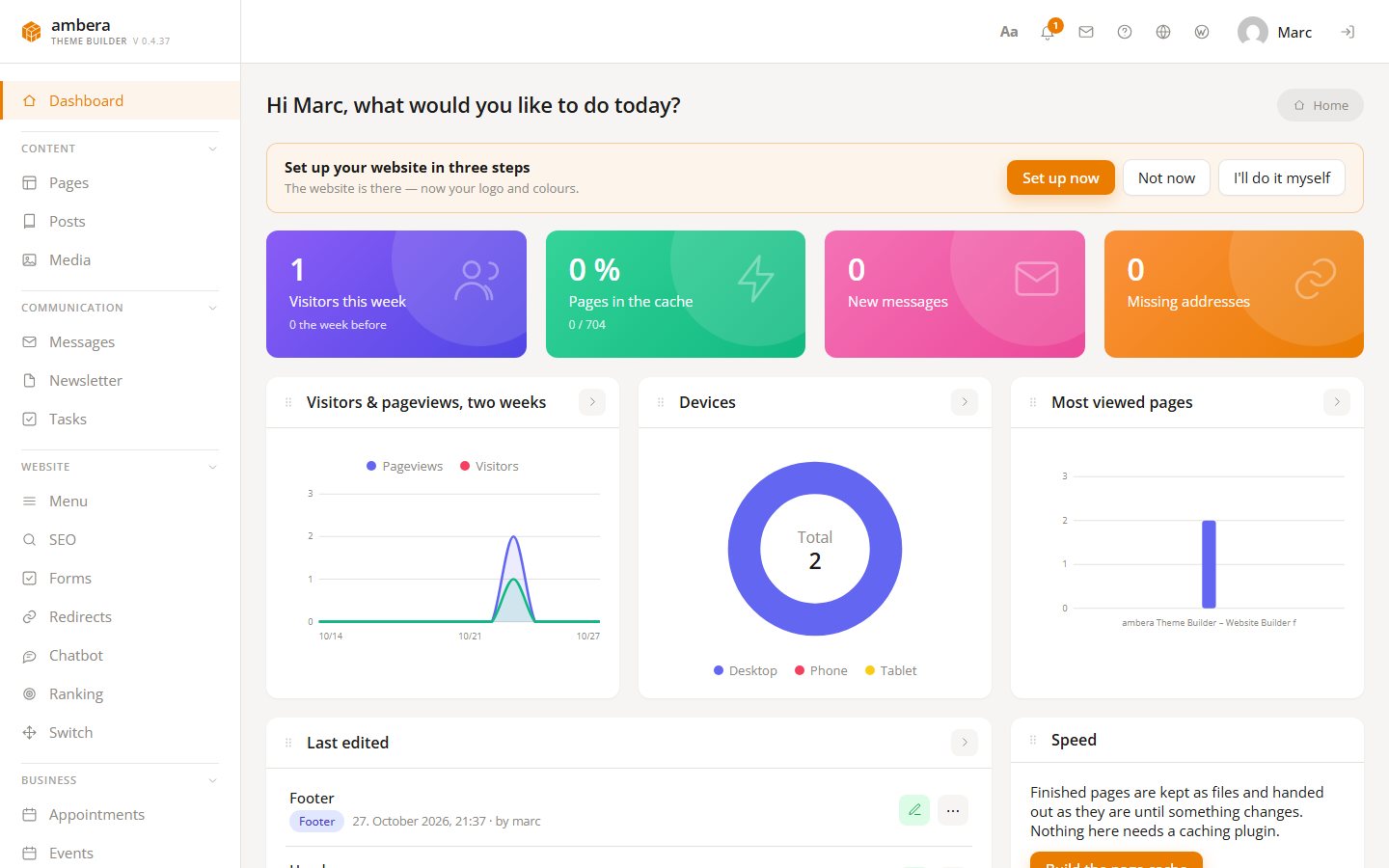
A fresh WordPress site is a dashboard full of empty boxes and no hint where to begin. Here a card on the dashboard says where: pick your trade and a finished website, give it your logo and your colours, and the site stands — with pages, templates, a menu, pictures and text that fit the trade. Every bit of it can be changed afterwards, page by page, in the editor. On Pro, a fourth step swaps the demo copy for words about your business.
Choose a website
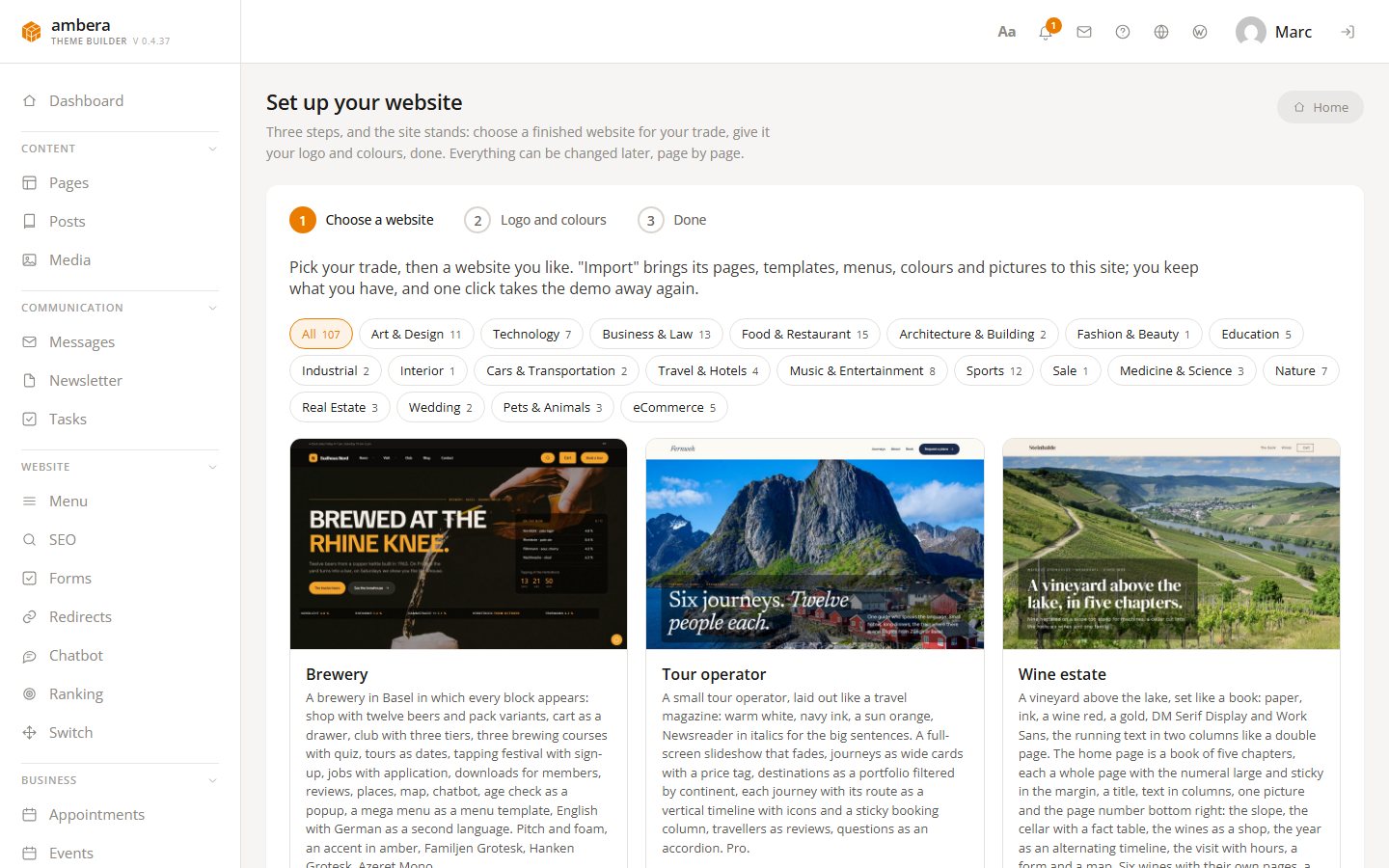
- Pick your trade, then a website you like — the same cards as under Demos
- Import brings pages, templates, menus, colours and pictures
- What you already have stays; one click takes the demo away again
- Or start with an empty site if you would rather build
- A demo already on the site counts as this step done
Logo and colours
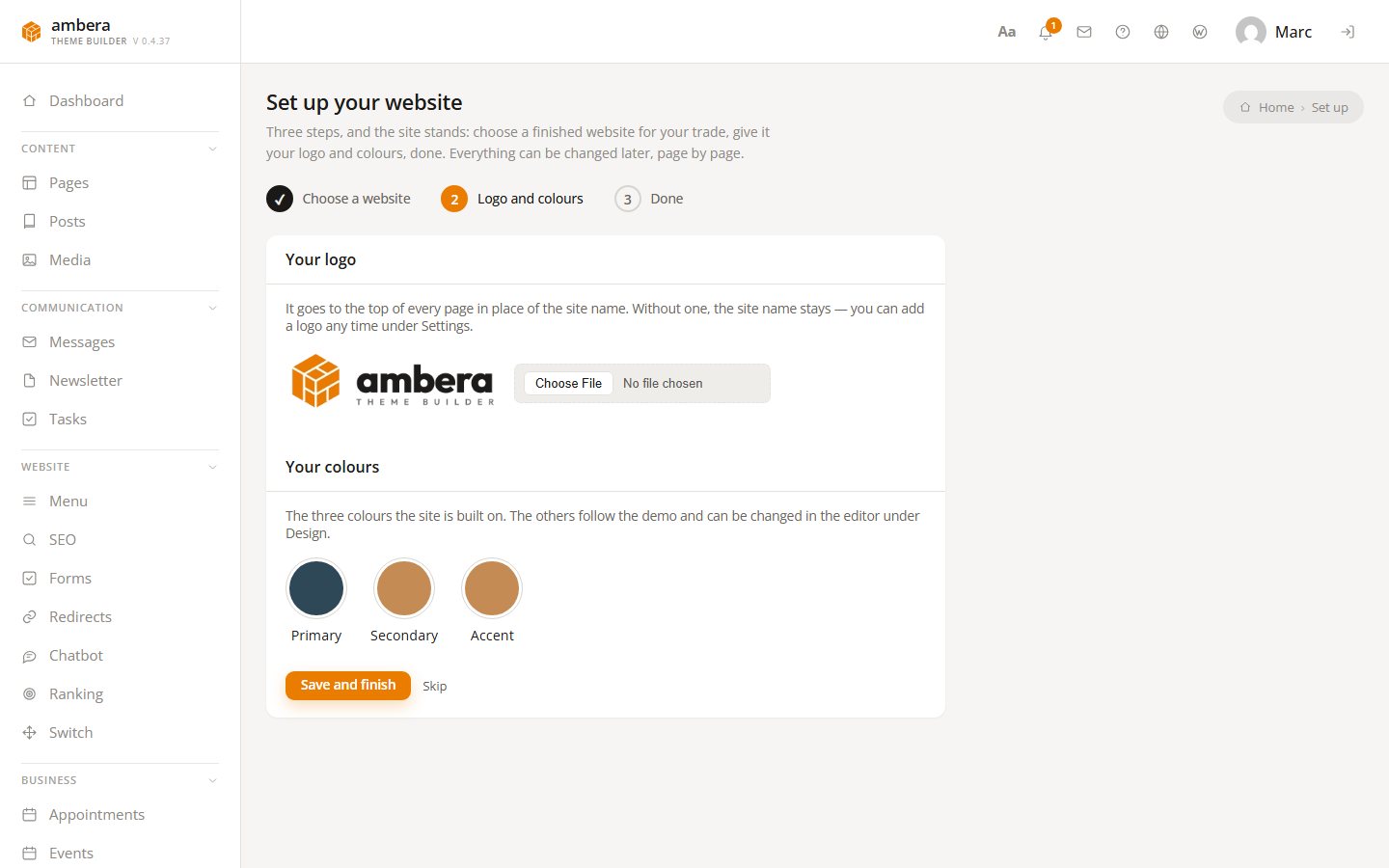
- The logo as PNG, JPEG, WebP or SVG
- It goes to the top of every page in place of the site name
- Three colours — primary, secondary, accent; the rest follow the demo
- No logo yet? The name stays, and Settings takes a logo any time
- Skip, if it has to wait
- On Pro, next comes Your texts: AI rewrites the demo copy
Done
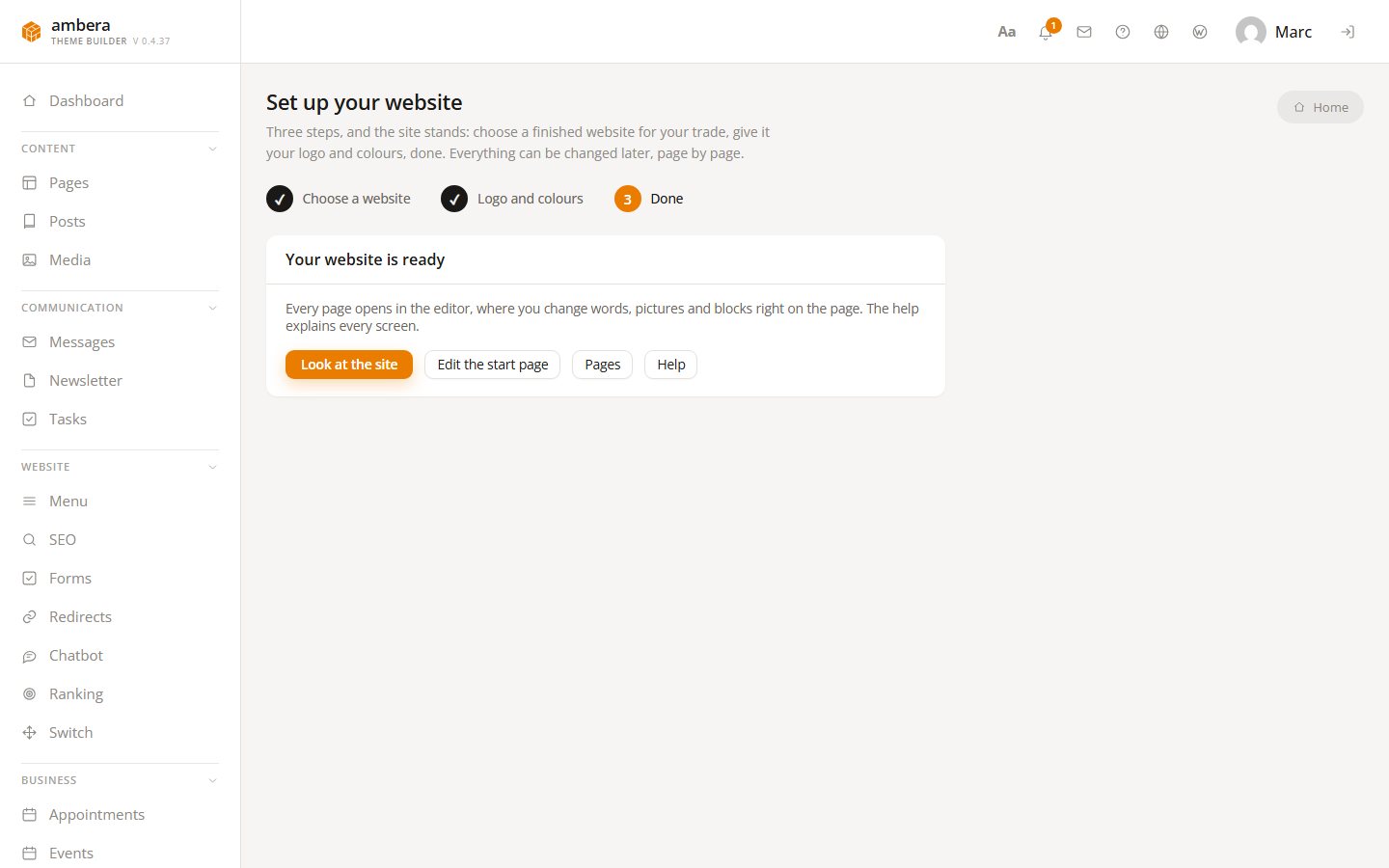
- Look at the site, edit the start page, the pages, the help
- The card on the dashboard goes away
- Not now keeps it quiet for a week; I'll do it myself closes it
- It only shows while the site is fresh: no demo and at most one page
- Whoever may import demos may set up
Choose a website
Start with one that already looks finished.
The first step shows the demo sites by trade — a hotel, a practice, a workshop, a restaurant, a shop and a hundred more. Import one and its pages, templates, menu, colours and pictures are on your site. Whatever was there before stays, and if another demo fits better, one click removes this one again.
Logo and colours
Two things that make any site yours.
Upload the logo, pick three colours, save. The logo now sits in the header template where the site name was; the three colours go into the palette, so everything the demo painted in those colours now wears yours. The remaining colours and the fonts follow the demo and can be changed in the editor under Design.
Done, and on you go
The card goes; the editor waits.
The third step says where to go next: look at the site, open the start page in the editor, the pages, the help. The card on the dashboard is gone afterwards. If you do not want it before that, Not now keeps it quiet for a week, and I'll do it myself closes it for good.
Questions
Is this in the free version?
Yes. Setting up is part of Light, like the demos it imports. Demos that need Pro blocks are not listed in Light. Only the Your texts step needs Pro and an AI key.
Can the AI write the texts for me?
On Pro with an AI key, yes. The Your texts step asks what the business does — its name, place, offer, audience and tone — and rewrites the headings, paragraphs and buttons of every demo page, the header and the footer. Structure and length stay, the language follows your description, and nothing is made up: no prices, no addresses, no names. The demo copy is kept with each page, so Put the demo texts back restores it.
When does the card show?
On a fresh site: no demo imported and at most one published page — or a demo is there but the logo and colours are still missing. Anyone who has already built two pages does not need a beginning.
What happens to what is already there?
It stays. The demo is added; it replaces no page you wrote. And one click under Demos takes it away again, with everything it brought.
Where does the logo go?
Into the header template, in place of the site name, and as the logo of the site under Settings. Without a logo the name stays — you can add one any time.
Can I skip the steps?
Yes. Start with an empty site in the first step, Skip in the second. Either ends the set-up; the site then stands as it is.

The WordPress theme builder has a name.

Built in Switzerland. Built for WordPress.